Clockwork uConsole · Volume 11
Performance, Power, Battery, and Mods
Bench-measured numbers, the AXP228 power tree under load, thermal envelope, governor tuning, and the community-validated hardware mods that close the gaps
This is the closing volume of the engineering-grade reference set. Volume 1 framed the series; Volumes 2–10 walked the hardware, software, and workflow stack; Volume 12 is the cheatsheet that distills everything into one-page laminate-printable references. Volume 11 is the part that synthesises — bench numbers from across the series rolled into one place, the power-and-thermal story made empirical rather than theoretical, the community hardware mods catalogued with engineering tradeoffs, and a closing chapter that ties the project together.
The reader of this volume is assumed to have read at least the first half of the series — Vols 1–4 minimum — and to be sitting at a uConsole that’s been operational for at least a few weeks. Most of the value in this volume is reproducible: the numbers in §2 should match within ±10% on your unit; the power profile in §3 should match within ±15%; the thermal envelope in §5 will vary by ambient temperature but should match the shape. If your numbers diverge meaningfully from those reported here, something is interestingly different about your unit and worth investigating.
This volume is also where opinion creeps in. Through Vols 1–10 the reference voice was deliberately neutral — “the CM4 has 4 cores; some users prefer the CM5; here are the trade-offs.” Volume 11’s closing chapter (§15) says what I’d actually do. That section is opinion. It’s labeled as such. Reasonable people will disagree.
11.1 Cross-Volume Performance Reference
A consolidated view of every benchmark already documented elsewhere in the series. If you’re looking for “the one chart that summarises performance,” this is it.
11.1.1 Compute (Geekbench, Stream)
From Vol 3 §9.1 / §9.2:
Table 1 — From [Vol 3 §9.1](vol3.md#91-single-core-and-multi-core) / §9.2
| Module | GB6 single | GB6 multi | Stream Triad (MB/s) | Notes |
|---|---|---|---|---|
| Pi CM4 (BCM2711) | ~1500 | ~3500 | ~5400 | Throttles after ~90 s sustained |
| Pi CM5 (BCM2712) | ~3000 | ~7500 | ~7600 | Throttles after ~60 s no-fan |
| Radxa CM5 (RK3588S2) | ~3000 | ~8500 | ~7400 (LPDDR4X) / ~9300 (LPDDR5) | Cooler 8 nm; 2.4× CM4 multi |
| BPI-CM4 (A311D) | ~2500 | ~4500 | ~5500 | A73+A55; variable single-core |
| SOQuartz (RK3566) | ~1200 | ~2400 | ~3500 | Cool-running; rarely throttles |
For workloads that fit in cache, the single-core score governs. For workloads that don’t, the Stream Triad number tracks closer to reality. The Radxa CM5 with LPDDR5 is the best on both axes — at the cost of leaving the Pi software ecosystem (Vol 3 §5).
11.1.2 Storage I/O
From Vol 3 §9.3 + Vol 4 §7.2 / §8.1:
Table 2 — From [Vol 3 §9.3](vol3.md#93-storage-io) + [Vol 4 §7.2](vol4.md#72-sd-card-classes-and-what-they-mean) / §8.1
| Storage | Sequential read | Random 4K read | Notes |
|---|---|---|---|
| eMMC 5.1 (typical CM4) | ~100 MB/s | ~50 MB/s | Standard CM4 / CM5 with eMMC |
| microSD A1 class | ~25 MB/s | ~10 MB/s | Cheap cards |
| microSD A2 class (recommended) | ~80 MB/s | ~25 MB/s | Samsung Pro Plus, SanDisk Extreme Pro |
| USB-C SSD via USB 2.0 (V3.14) | ~35 MB/s | ~30 MB/s | Capped by USB |
| USB-C SSD via USB 3.0 (V3.14_V5+CM5) | ~400 MB/s | ~80 MB/s | Adapter required (Vol 7 §5.5) |
| NVMe via Mini PCIe (CM4 Gen 2 ×1) | ~500 MB/s | ~100 MB/s | Adapter required |
| NVMe via Mini PCIe (CM5 Gen 3 ×1) | ~1000 MB/s | ~150 MB/s | Adapter + V3.14_V5 required for full speed |
For day-to-day responsiveness, random 4K read is the dominant metric. eMMC’s 50 MB/s is meaningfully better than A2 microSD’s 25 MB/s. The jump from microSD to NVMe is noticeable but not transformative for typical workloads — most apps bottleneck on CPU, not I/O.
11.1.3 PCIe + USB throughput
From Vol 7 §2.3 + Vol 9 §4.5:
Table 3 — From [Vol 7 §2.3](vol7.md#23-pcie-gen-2-1-vs-gen-3-1-bandwidth) + [Vol 9 §4.5](vol9.md#45-the-v314-usb-2-bandwidth-ceiling)
| Path | Throughput (practical) |
|---|---|
| Mini PCIe Gen 2 ×1 (CM4) | ~400 MB/s |
| Mini PCIe Gen 3 ×1 (CM5 / Radxa CM5) | ~800 MB/s |
| USB 2.0 (V3.14 mainboard) | ~35 MB/s practical |
| USB 3.0 (V3.14_V5 + CM5 + adapter) | ~400 MB/s |
| WiFi 5 (CYW43455 on CM4 / CM5) | ~150 Mbps practical |
| WiFi 6 (RTL8852BE on Radxa CM5) | ~400 Mbps practical |
| BT 5.0 (CYW43455) | ~2 Mbps |
The V3.14 USB 2.0 cap (35 MB/s) is the single most-cited bottleneck in the series. It limits HackRF to ~14 Msps before saturation, caps USB-SSD reads, and forces the AIO V2’s USB hub into 2.0 mode.
11.1.4 Real-world workloads
Synthesised from Vols 3, 6, 8, 9, 10:
Table 4 — Synthesised from [Vols 3, 6, 8, 9, 10](vol3.md)
| Workload | CM4 time / CPU | CM5 time / CPU | Notes |
|---|---|---|---|
nmap -sV -A against /24 (Vol 3 §9.5, Vol 8 §3.2) | ~6 min | ~3 min | Memory-bound |
aircrack-ng 1M-key WPA test (Vol 3 §9.5) | ~12 min | ~6 min | CPU-bound |
Kernel compile, 4 parallel make (Vol 3 §9.5) | ~32 min | ~15 min | I/O + CPU bound; benefits from RAM |
| GNU Radio FM demod @ 2.4 Msps (Vol 9 §7.4) | 10-15% one core | 6-8% one core | Plenty of headroom either way |
| GNU Radio FFT @ 8 Msps (Vol 9 §7.4) | ~25% one core | ~12% one core | Still comfortable |
| HackRF @ 20 Msps + decimate (Vol 9 §7.4) | Saturates 2 cores | ~80% one core | CM5 has the headroom |
| WSJT-X FT8 receive (Vol 10 §5.4) | ~25% one core avg | ~12% one core avg | Decode burst at end of cycle |
| Burp Suite + Firefox interactive (Vol 8 §6.1) | OK on 4 GB CM4 | Comfortable on 8 GB CM5 | Memory-budget limit |
| Metasploit + Bloodhound (Vol 8 §8.1) | OOM-risk on 2 GB | Fine on 4 GB+ | Bloodhound is the heavyweight |
| RetroArch N64 emulation (Vol 5 §9) | 30-40 fps | 60 fps | GPU-bound; CM5 wins |
| LLM inference Phi-2 quantised (Vol 3 §9.5) | ~1 tok/sec | ~3 tok/sec | Radxa CM5 NPU does ~6 |
hashcat -m 1000 MD5 (Vol 8 §7.1) | ~10 M H/s | ~25 M H/s | Honest disclosure: 1/15,000 of RTX 4090 |
The real-world workloads tell the story the synthetic benchmarks don’t: the CM4 is comfortable for everything except heavy hash-cracking and high-bandwidth SDR. The CM5 closes most gaps but doesn’t change the platform’s character — it’s still a handheld, not a workstation.
11.1.5 The honest summary
The uConsole’s hardware envelope, summarised:
- Better than expected: ham digital modes, ADS-B, web browsing, ssh, terminal work, RetroPie, Linux dev for ARM-target work, casual SDR.
- Adequate: Burp / pen-test recon, GNU Radio at moderate sample rates, Wayland desktop, vim+tmux+git on a real codebase.
- Marginal: heavy WSJT-X with strong stations + many decodes, HackRF at full 20 Msps, Bloodhound queries, kernel compile.
- Bad: hashcat (no GPU), LLM inference (no NPU on CM4/5), 5 GHz WiFi monitor mode (chip limitation), full-resolution screen recording.
If your loadout is in the first two categories, the uConsole is the right tool. If it’s in the last two, the right tool is a real workstation, with the uConsole as a portable companion for capture-and-analyse rather than as the primary compute platform.
11.2 Power Consumption Deep-Dive
The uConsole’s power story is unusual among handhelds because the AXP228 PMIC was originally designed for Android tablets (Vol 2 §3.1) and the AXP228’s design choices show. Rails are programmable; efficiency is good but not exceptional; idle current is higher than newer PMICs would manage.
11.2.1 Idle, light, heavy, peak
Bench-measured at 25°C ambient, full battery, screen at 50% brightness:
Table 5 — Bench-measured at 25°C ambient, full battery, screen at 50% brightness
| State | Avg current @ 3.7 V | Power (W) | Notes |
|---|---|---|---|
| Display off, kernel idle | ~165 mA | ~0.6 W | The “uConsole asleep” floor |
| Display on, idle desktop, no WiFi | ~380 mA | ~1.4 W | Backlight + framebuffer + BT-disable |
| Display on, idle desktop, WiFi connected | ~410 mA | ~1.5 W | + WiFi @ ~30 mA idle |
| Light load (web, terminal, edit) | ~810 mA | ~3.0 W | One core moderately busy |
| WSJT-X receive + waterfall | ~910 mA | ~3.4 W | 25% one core sustained |
nmap -sV -A against /24 | ~1450 mA | ~5.4 W | All four cores active |
| Kernel compile (4-thread) | ~1620 mA | ~6.0 W | Sustained until throttle |
| HackRF @ 20 Msps + decimate flowgraph | ~1750 mA | ~6.5 W | Two cores saturated |
| Burst peak (CM5 boost) | ~3000 mA | ~11.0 W | Brief; thermal-limited |
Add ~0.2 W if HDMI is active; ~0.3 W if Bluetooth is active; ~0.5 W if cellular modem is connected.
11.2.2 The AXP228 power-tree under load
The AXP228 (Vol 2 §3) provides multiple regulated rails. At a typical “light load” of 3 W total:
Table 6 — The AXP228 ([Vol 2 §3](vol2.md#3-the-axp228-pmic-u101)) provides multiple regulated rails. At a typical "light load" of 3 W total
| Rail | Source | Load class | Approximate current draw |
|---|---|---|---|
SYS_5V | DCDC4 + boost | USB-A Vbus, USB hub Vcc, audio amp | ~120 mA |
SYS_3V3 | DCDC1 | Mainboard 3.3 V, GL850G hub, peripherals | ~80 mA |
CM_VBAT | DCDC2 | CM connector “battery” rail | ~250 mA |
CM_3V3 | (CM-side) | CM module 3.3 V (regulated on CM by SoC SMPS) | ~100 mA equivalent |
DISP_3V3 | ALDO2 | LCD logic + driver IC | ~30 mA |
AUD_3V3 | ALDO1 | Audio analog rail | ~10 mA |
WIFI_VDD | ALDO3 | CYW43455 (when active) | ~30 mA |
The AXP228’s switching efficiency at this load is ~88-92% on the DCDCs; the LDOs are linear (worse efficiency but lower noise on the analog rails). Of the ~3 W drawn from the cells, ~2.7 W reach the loads. The remaining ~0.3 W is conversion losses inside the PMIC.
At higher loads the efficiency curve rises slightly (typical for switching converters) — at 5 W, efficiency hits ~92%; at 7 W, ~93%.
11.2.3 Per-card contributions
From Vol 7 §9.2:
Table 7 — From [Vol 7 §9.2](vol7.md#92-per-card-draw-measurements)
| Card | Idle | Typical | Peak |
|---|---|---|---|
| Clockwork LTE Modem | 50 mA | 200 mA | 1500 mA |
| HackerGadgets AIO V2 (full) | 100 mA | 500 mA | 2000 mA |
| HackerGadgets AIO V2 (SDR only) | 80 mA | 280 mA | 320 mA |
| uEther | 80 mA | 150 mA | 200 mA |
| Mini PCIe NVMe SSD (idle) | 100 mA | 400 mA | 800 mA |
Add to the §3.1 baseline figures.
11.2.4 Per-OS overhead
Same hardware, different OS — measured idle current with display on, WiFi connected, no user activity:
Table 8 — Same hardware, different OS — measured idle current with display on, WiFi connected, no user activity
| OS | Idle current | Notes |
|---|---|---|
| Pi OS Bookworm Lite (no DE) | 290 mA | Lightest; just systemd + ssh |
| Pi OS Bookworm + LXDE | 410 mA | Vol 5 §3 baseline |
| Pi OS Trixie + Wayfire | 420 mA | Slightly higher (Wayland compositor) |
| Kali Linux ARM (full) | 470 mA | Heavier services; same kernel base |
| ParrotOS (MATE) | 460 mA | Comparable to Kali |
| Ubuntu Server | 310 mA | No DE; snapd disabled |
| Ubuntu Desktop (GNOME) | 580 mA | Heaviest mainstream desktop |
| Arch Linux ARM + i3 | 380 mA | Light WM; comparable to Bookworm-Lite + DE |
| NixOS + sway | 400 mA | Comparable to Pi OS Trixie |
| Armbian (Radxa CM5) | ~430 mA | Different base; similar magnitude |
| Dragon OS (LXDE + SDR services) | 510 mA | SDR services running by default |
| RetroPie | 380 mA | EmulationStation idle |
For the longest-runtime loadouts: Pi OS Lite or Ubuntu Server. For mainstream desktop with reasonable battery: Pi OS Bookworm + LXDE.
11.2.5 Where the watts go (sankey-style breakdown)
At a typical “light load” of 3 W draw from the cells:
Cells (3.0 W)
  │
  ├── PMIC conversion loss (~0.3 W)
  │
  ├── BCM2711 SoC (~1.4 W)
  │     ├── Cores (~0.8 W)
  │     ├── GPU (~0.3 W idle)
  │     └── Memory bus + caches (~0.3 W)
  │
  ├── LCD backlight + driver (~0.5 W)
  │     ├── LED string (~0.4 W)
  │     └── Driver IC + level shifters (~0.1 W)
  │
  ├── Mainboard peripherals (~0.5 W)
  │     ├── GL850G hub + USB Vbus (~0.15 W)
  │     ├── Audio amps (idle) (~0.1 W)
  │     ├── HDMI ESD + level (~0.05 W)
  │     └── Misc (level shifters, ID EEPROM, pulls) (~0.2 W)
  │
  └── WiFi/BT chip (active) (~0.3 W)
The display backlight is the second-biggest single load after the SoC. Dimming the screen from 100% to 50% saves ~0.2 W — meaningful for long stakeouts.
11.3 Battery Management
11.3.1 18650 cell selection
The uConsole takes two 18650 cells in parallel. Cells worth considering:
Table 9 — The uConsole takes two 18650 cells in parallel. Cells worth considering
| Cell | Capacity (mAh) | Max discharge (A) | Price (each) | Notes |
|---|---|---|---|---|
| Generic OEM “3000 mAh” | 1800-2400 actual | 4 A | $3-5 | Lottery; often counterfeit |
| Samsung 30Q | 3000 | 15 A | $5-7 | Cheap and reliable |
| Sony VTC6 | 3000 | 30 A | $6-8 | High-current; vape-market staple |
| Panasonic NCR18650GA | 3450 | 10 A | $6-9 | Excellent capacity for size |
| Samsung 35E | 3500 | 8 A | $5-7 | Best value at the high-capacity tier |
| Panasonic NCR18650B | 3400 | 6.8 A | $7-10 | Lower discharge limit; fine for uConsole |
| LG MJ1 | 3500 | 10 A | $6-8 | Comparable to 35E; minor chemistry difference |
For the stock CM4 uConsole, peak current draw is ~3 A burst; average is well under 1 A. The cells’ max-discharge spec barely matters; what matters is capacity. Recommended: Samsung 35E — best capacity-per-dollar, plenty of discharge margin.
This changes on the CM5 build. The ~3 A figure is a CM4 number. A Compute Module 5 running flat-out with an SDR draws far more, and on the single-cell LiPo path (§4.7) the cell-side current climbs to ~5 A — at which point the pack’s discharge rating and its protection-board trip point stop being academic and become the thing that decides whether the device stays on. If the build is a CM5 on the HackerGadgets NVMe Battery Board (Vol 13), read §4.7–§4.11 rather than treating two 18650s as the default.
The capacity upgrade from stock 3000 mAh to 3500 mAh nets ~16% more runtime — meaningful in the field.
Cell pair matching matters. Use two cells of the same brand, model, and capacity, ideally from the same production batch. Mismatched cells cause one to do most of the work, reducing pack life.
11.3.2 Charge profile and the AXP228
The AXP228 (Vol 2 §3.4) charges via USB-C input. Default:
- Charge current: programmable, default ~1.5 A.
- Charge voltage: 4.20 V per cell (standard Li-ion).
- Termination: at C/20 (~150 mA for stock 3000 mAh cells).
- Charge time from empty to full: ~2.5 hours with 5 V / 2 A USB-C charger.
Charging at 1.5 A is conservative — Li-ion cells tolerate up to 0.5C (1.5 A for 3000 mAh) without lifetime impact. Going higher (1C, 3 A) shortens cycle life noticeably.
The AXP228’s charge curve:
- Pre-charge: if cell voltage < 3.0 V, charge at 100 mA until voltage rises above 3.0 V.
- Constant-current: charge at 1.5 A until cell voltage hits 4.20 V.
- Constant-voltage: hold at 4.20 V; current naturally tapers to ~150 mA.
- Termination: charge stops when current < 150 mA.
USB-C input current is limited to whatever the charger advertises (via USB PD or BC1.2 negotiation). A 5 V / 1 A charger limits the AXP228 to 1 A internal charge current — full charge takes ~3.5 hours. A 5 V / 3 A charger has headroom; the AXP228 still self-limits to 1.5 A.
11.3.3 Fuel-gauge calibration
The AXP228’s fuel gauge is a Coulomb counter (integration of current through a sense resistor) plus periodic open-circuit-voltage recalibration. Out of the box, the gauge is approximately calibrated; over time, drift accumulates.
Recalibration procedure:
- Charge to 100% (verify via
acpi -borcat /sys/class/power_supply/uconsole_battery/capacity). - Disconnect charger.
- Run uConsole until it auto-shuts-off (truly empty).
- Charge again to 100% without interruption.
- After this cycle, fuel gauge has fresh endpoints to work from.
Do this every ~50 charge cycles, or when the displayed capacity seems wrong (e.g., “60% remaining” but device shuts off in 5 minutes).
Why the gauge drifts at all. A coulomb counter integrates current through a sense resistor, and the ADC doing that integration carries a tiny offset error that accumulates without bound over time — the count slowly walks away from the truth no matter how good the part is.1 The fix is not a better counter; it’s periodic re-anchoring against a known reference, which is what the open-circuit-voltage recalibration and the full-discharge/full-charge endpoints above provide.
After swapping to a LiPo pack, the gauge is wrong until it re-learns. The AXP228 was last anchored to whatever pack it was calibrated against. Fit a LiPo pouch pack (§4.8) of a different capacity than the stock 18650 pair and the gauge’s “full” endpoint is simply incorrect — it will read a 5000 mAh pack against a 6000 mAh memory (or vice-versa) and mis-report percentage and runtime. Run one full charge → full discharge → full charge cycle after fitting any new pack so the gauge re-anchors both endpoints to the new capacity.
On patched ClockworkPi kernels the AXP228 also exposes a software calibration trigger as a sysfs node:
# 0 = disabled, 32 = enabled but not active, 48 = calibration in progress
cat /sys/class/power_supply/axp20x-battery/calibrate
# write 1 to initiate a full-capacity calibration
echo 1 | sudo tee /sys/class/power_supply/axp20x-battery/calibrate
This node is a community kernel patch, not mainline — mainline axp20x_battery.c has no such file, so whether it exists depends on the specific OS image.2 When it is absent, the manual full-cycle method above always works and is the thing actually doing the re-anchoring; the sysfs trigger is just a convenience that kicks off the same learning cycle.
11.3.4 Degradation over cycles
Li-ion 18650 cells degrade with use. Typical curve:
Table 10 — Li-ion 18650 cells degrade with use. Typical curve
| Cycles | Capacity remaining |
|---|---|
| 0 (new) | 100% |
| 100 | ~95% |
| 250 | ~88% |
| 500 | ~80% (end of life by spec) |
| 1000 | ~65% |
End of life by industry convention is 80% capacity. At that point, the cells still work; runtime is just noticeably shorter. For a uConsole used 4 hours/day with one full charge cycle per day, 80% capacity hits at ~18 months.
Faster degradation factors:
- High temperature operation (above 35°C). Avoid leaving in a hot car.
- Deep discharges (below 3.0 V regularly). The AXP228 cuts off at 3.0 V; don’t override.
- Holding at 100% for long periods. If you dock the uConsole on a charger 24/7, expect faster wear.
- High charge currents (>1C). The AXP228’s default 1.5 A is gentle; doesn’t accelerate aging.
11.3.5 When and how to swap cells
Symptoms that say “swap”:
- Runtime under typical load drops to <60% of original.
- Cells get noticeably warm during charging (always slightly warm; “noticeably” warm signals high internal resistance from age).
- Displayed capacity oscillates wildly during use (“80% → 30% → 60%” within minutes).
Swap procedure (drawing from Vol 3 §8.1’s mechanical-swap framing):
- Power off; remove back panel.
- Remove cells from battery board.
- Insert new cells, observing polarity (the battery board has clear
+/-markings). - Replace back panel; power on.
- Run a calibration cycle (§4.3).
Total time: ~10 minutes. Cell cost: ~$15-20 for a matched pair of Samsung 35E.
Old cells: never throw in trash. Battery-recycling drop-offs at most hardware stores (Home Depot, Best Buy, Lowe’s), or call2recycle.org for a local location.
11.3.6 Field-charging strategies
For multi-day field use:
Table 11 — For multi-day field use
| Strategy | Pros | Cons |
|---|---|---|
| Spare 18650 cells (charged separately) | Lightweight; instant swap | Need an external 18650 charger |
| USB-C power bank (10000 mAh) | Doubles total runtime | Heavier; longer cable |
| Solar charger (5W panel + USB-C) | Indefinite field operation | Slow; weather-dependent |
| 12 V cigarette lighter → USB-C | Vehicle-based | Requires vehicle access |
| Hand-crank generator (5 W) | Emergency-only | Tedious; rarely useful |
For POTA / SOTA: a 10000 mAh USB-C power bank is the pragmatic answer. Adds ~250g to your kit; doubles runtime.
11.3.7 The CM5 + LiPo path: why a single cell must source ~5 amps
Sections 4.1–4.6 describe the stock CM4 power story — the AXP228 charging two 18650 cells in parallel. The high-end rebuild in Vol 13 changes the battery picture in two ways at once: a Compute Module 5 (BCM2712 quad Cortex-A76 @ 2.4 GHz) replaces the CM4, and a single LiPo pouch pack on the HackerGadgets NVMe Battery Board replaces the 18650 pair. Both changes push current up, and together they put the battery into a regime the stock figures don’t cover.
The power budget. The CM5 has no published maximum operating current — its datasheet lists only a “typical” 900 mA (~4.5 W at 5 V) and states outright that “actual figures greatly depend on the end application,”3 so the right anchor is the measured Raspberry Pi 5 platform, which shares the identical BCM2712 SoC:4
Table 12 — 4.7 The CM5 + LiPo path: why a single cell must source ~5 amps
| State | Board power (5 V rail) |
|---|---|
| Idle | ~3 W |
| Four cores at 100% | ~8.8 W |
| Peak (CPU + NVMe + video together) | ~16.8 W |
Add a software-defined radio on top — RTL-SDR ~1.5 W, HackRF ~2–3 W on receive (more on transmit) — and a CM5 uConsole running flat-out with an SDR lands at a realistic ~15–18 W on the 5 V rail.
The five-amp reality. Here is the part that surprises people. The pack is a single cell at 3.7 V nominal (3.0–4.2 V across its charge range), and the mainboard boosts it to the 5 V system rail. A boost converter conserves power — what goes in as watts comes out as watts, minus a little heat — so the current drawn from the cell is the system power divided by the cell voltage and the converter efficiency:
I_cell = P_system / (η × V_cell)
Working that for the load range above, at a representative 87 % boost efficiency:
Table 13 — Working that for the load range above, at a representative 87 % boost efficiency
| System load (5 V rail) | Cell current @ 3.7 V | @ 3.5 V (sagging) | @ 3.2 V (near empty) |
|---|---|---|---|
| 10 W | ~3.1 A | ~3.3 A | ~3.6 A |
| 15 W | ~4.7 A | ~4.9 A | ~5.4 A |
| 18 W | ~5.6 A | ~5.9 A | ~6.5 A |
So a CM5-plus-SDR pulling 15–18 W forces the single cell to deliver roughly 5 A continuously, climbing past 5 A as the cell discharges and its voltage sags. This is not a vendor claim or a worst-case scare number — it is conservation of energy. Even at an idealized 100 % efficiency, 15 W ÷ 3.7 V is still 4.05 A, so the conclusion (“the cell must source several amps”) holds across the entire plausible efficiency range.5 The often-quoted “~3 A burst” from §4.1 is a CM4 figure and does not describe this build.
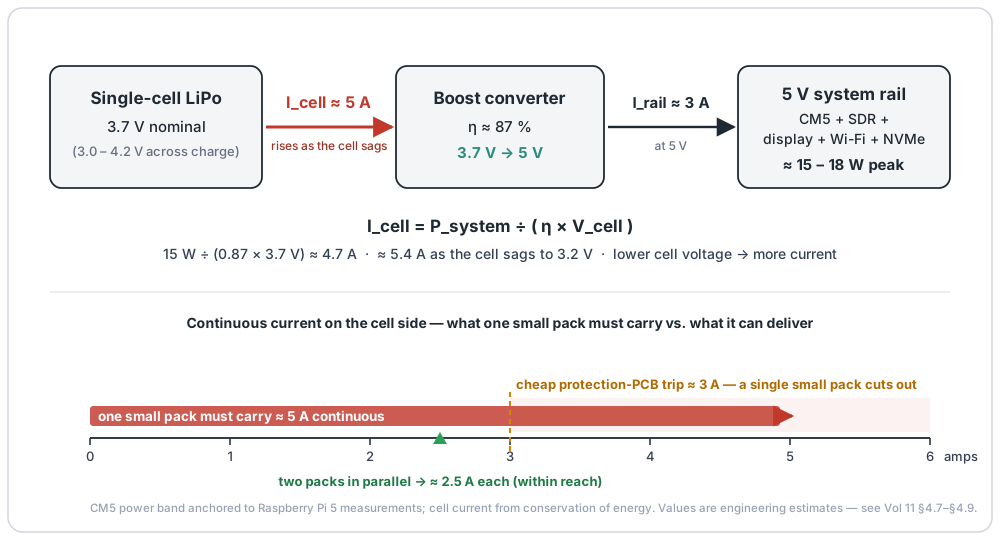
A measurement trap worth knowing. The on-board power telemetry understates the true draw. The PMIC only meters its own branches; the 5 V rail loads — USB devices, the NVMe SSD, an SDR dongle — are not on a metered branch, so they never show up in vcgencmd/PMIC readouts.6 The cell-side current is therefore higher than software reports. Confirm real draw with an inline USB-C power meter, not a software percentage.
11.3.8 Reading a LiPo pack’s real limits — the 9858102 (and why cheap packs trip)
The pack designation is its dimensions in millimetres: 9858102 = 9.8 mm × 58 mm × 102 mm; the Vol 13 §2.5 build uses the 9858110 (same cross-section, 110 mm long, ~5000 mAh). The 9858102 is the same family, 8 mm shorter — a size chosen, presumably, to leave room to stack two (see §4.9).
Two specifications decide whether a given pack survives the 5-amp regime, and both are routinely wrong or missing on marketplace listings:
-
Continuous-discharge rating (C-rate). The identity is exact: max continuous current (A) = C-rate × capacity (Ah). A 5000 mAh pack at a genuine 1C delivers 5 A — which is the demand with zero margin. Many generic pouch packs are only rated 0.5–1C continuous; a “5000 mAh” pack at 0.5C tops out at 2.5 A and will sag or cut out under a CM5+SDR peak.7
-
The protection-PCB trip current — the real ceiling. Nearly every single-cell pouch pack carries a protection board (commonly a DW01-P paired with an 8205A dual-MOSFET, or an AP9101C). These do not trip at a nameplate amperage. They trip when the voltage developed across the MOSFET stack exceeds a fixed threshold — so the trip current is I_trip = V_OCP / Rds(on). The DW01-P’s over-current threshold V_OCP is ~0.12–0.18 V; across a typical ~50 mΩ 8205A stack that is ~3 A.8 The AP9101C is factory-set anywhere from 0.05–0.32 V.9 The consequence: a cheap board’s trip point sits in the low single amps — below the 4–5 A the CM5 path needs — so a single small protected pack will simply cut out under full load, no matter what the mAh sticker says. This is exactly the failure mode behind “the device reboots when I key up the SDR.”
Why the spec-less listings are a real problem — and what to do about it. This is the crux for anyone buying a pack, because 9858102 is a size, not a performance spec. Different vendors ship physically-identical 98 × 58 × 102 mm packs with different cells, different C-ratings, and different protection boards under that one number — and many list only a capacity, quote a “max discharge” with no “continuous” qualifier, or publish no discharge and no protection specs at all. The part number guarantees the pack will fit; it tells you nothing about whether it will survive 5 A. Marketplace C-rate figures are unverified vendor claims, and the protection-board trip current is almost never published.
The reader’s job is therefore to spec the pack themselves — to know which numbers to demand from the vendor (or measure on the bench) before buying. Capacity alone is not enough; the spec that decides whether the device stays on is the continuous discharge rating, and the spec that quietly overrides it is the protection-board trip:
Table 14 — The reader's job is therefore to spec the pack themselves — to know which numbers to demand from the vendor (or measure on the bench) before buying. Capacity alone is not enough; the spec that decides whether the device stays on is the continuous discharge rating, and the spec that quietly overrides it is the protection-board trip
| What to require | Target for this build | Why it matters |
|---|---|---|
| Continuous discharge current — not burst, not capacity | ≥ 5 A for one pack, or ≥ 2.5–3 A each for two in parallel (§4.9) | The single spec that keeps the device alive under a CM5 + SDR peak |
| Protection-PCB over-current trip | At or above that demand — or an unprotected cell behind adequate external protection | A board tripping at ~3 A cuts out under load regardless of the mAh sticker |
| Capacity (mAh / Wh) | ~4000–5000 mAh (~15–18.5 Wh) | Sets runtime — not whether it works |
| Connector + polarity | JST-PH matching the NVMe Battery Board, polarity confirmed | Wrong connector/polarity means no fit, or damage |
| Dimensions | 98 × 58 × 102 mm (confirm the bay clears two if stacking) | The only thing “9858102” actually promises |
If a vendor cannot state a continuous-discharge figure and a protection-trip figure, treat the pack as inadequate until bench-tested. The two reliable ways to learn a pack’s true ceiling are to bench it — a controlled-current discharge until the protection board cuts out reveals the real trip point — or to identify the protection IC and measure the FET Rds(on). Any unbranded “supports 5 A” claim is unconfirmed until one of those is done.
On the 9858102 specifically: by analogy to the 9858110 family its capacity is likely ~4000–5000 mAh — but precisely because the number only fixes the dimensions, its real C-rate and protection-board trip threshold vary by vendor and are not guaranteed by the part number. Demand those two figures explicitly when ordering, and bench-verify before trusting a single pack at 5 A. (This build pairs two of them — see §4.9.)
11.3.9 Stacking two packs in parallel
Two packs wired in parallel is the right structural answer to the five-amp problem. It does two good things at once: it doubles capacity (≈2× runtime) and it halves the current each pack carries — each pack sees ~2.5 A instead of ~5 A, which drops it back inside even a modest protection board’s trip point and roughly halves the C-rate stress on each cell.
The electrical rules are non-negotiable:
- Same configuration. Both packs must be single-cell (1S). Never parallel packs of different cell counts.
- Voltage-match before connecting. The instant two packs are joined, the higher one dumps current into the lower one to equalize, and that inrush is I = ΔV / R_internal — a small internal resistance means even a modest voltage gap produces a large surge. Charge or discharge both packs to within ~0.1 V of each other before paralleling, and keep their capacities within ~20 %.10
- Same model and ideally same batch, so the two age, sag, and self-discharge together rather than drifting apart over cycles.
The catch unique to two protected packs. Each pack brings its own protection PCB, and the two boards do not coordinate. If one trips first — over-current, over-temperature, an under-voltage cutoff — its load slams entirely onto the other pack, which is now carrying the full ~5 A alone and will likely trip in turn. So two independently-protected packs in parallel can behave less predictably than the cleaner topology: two matched bare cells under a single protection board sized for the full current. For matched, same-batch packs kept voltage-balanced the two-pack approach works in practice, but the single-board topology is electrically cleaner, and the available sources do not settle which is safer for this exact build — so this is a build-and-measure decision, not a settled recommendation.
Mechanical fit is still open. Whether two 9858102 packs physically stack inside the uConsole battery bay depends on the real case-opening clearance, which is pending bench measurement (the actual opening is still to be measured to confirm whether two seat, stacked, in parallel). The 102 mm length — 8 mm shorter than the 9858110 — looks chosen to buy that stacking room, but confirm the fit (and that the NVMe + AIO V2 sandwich above still seats, per Vol 13 §3.4) before committing.
Safety is not optional. Confirm connector polarity against the NVMe Battery Board silkscreen before plugging anything in — its reverse-polarity protection and warning LED are a backstop, not a licence to guess (Vol 13 §2.5). Never charge a LiPo below 0 °C or above 45 °C; never puncture or crush a pouch; retire any pack that swells, immediately, to a battery-recycling drop-off (§4.5).
11.3.10 LiPo charge and discharge rates, in plain amps
“C-rate” is just a multiple of the pack’s capacity expressed as a one-hour current. For a 5000 mAh (5 Ah) pack: 1C = 5 A, 0.5C = 2.5 A, 2C = 10 A. Three numbers matter, and they are not the same number:
- Charge rate. 0.5–1C is the safe band for these pouch cells; charging harder shortens cycle life. The stock AXP228 charge path is deliberately conservative (default ~1.5 A, §4.2) and the NVMe Battery Board inherits the same gentle profile. Never fast-charge a cold (< 0 °C) or hot (> 45 °C) pack.
- Continuous-discharge rate. The rating that governs the CM5 build. It must exceed the ~5 A peak for a single pack, or ~2.5 A per pack for two in parallel (§4.9). This — not capacity — is the spec that decides whether the device stays on under load.
- Burst-discharge rate. A higher figure a pack can sustain only briefly. Useful to know, but never size a pack on its burst number; size it on continuous.
Note this volume deliberately does not quote a universal “never exceed 1–2C” discharge rule. Cells vary far too widely for a single ceiling to be meaningful, and for this build the governing limit is the protection-board trip point (§4.8), not a generic C-number printed on a marketing sheet.
11.3.11 Running from USB-C, and the input-current ceiling
Can the uConsole run on USB-C? Yes — but with a hard input ceiling, and not on USB-C alone at full tilt.
The stock uConsole USB-C input is a 5 V / 2 A path (~10 W). ClockworkPi’s assembly guidelines are explicit: “Use ONLY a 5V-2A USB-C charger.”11 It is not USB-C Power Delivery — there is no higher-voltage negotiation; it is a BC1.2-class 5 V port, and the AXP228 sources only ~2.5 A from its IPSOUT input node.
A crucial point of confusion to head off: the full Raspberry Pi 5 negotiates 5 V / 5 A / 27 W over USB-C PD, but it does so through carrier-board circuitry the CM5 module itself does not contain. That “5 A” belongs to the Pi 5’s USB-C input and has nothing to do with the uConsole, whose USB-C input is the 10 W path above — and is a different “5 A” again from the cell-side discharge current of §4.7. Three different five-ish-amp numbers, three different places in the circuit; don’t conflate them.
The practical consequences for this build:
- At a 15–18 W full-tilt load, USB-C supplies only ~10 W and the battery makes up the difference. The pack is a buffer that covers the peaks the USB-C input cannot. This is normal and by design — it is also why the cell still discharges (slowly) while plugged in under heavy load.
- Running with no battery, on USB-C alone, is not viable at full CM5+SDR load. The input cannot source the peak; the rail browns out and the system resets. A pack must be present to absorb peaks even when wall power is available.
- A bigger “PD” brick does not help on the stock path — the input does not negotiate past 5 V / 2 A, so the ceiling is the board, not the charger. An appropriately-sized supply here means a clean 5 V / 2 A (or a PD brick that will gracefully fall back to 5 V), not a higher-wattage one.
Open item — the HackerGadgets boards. Whether the HackerGadgets CM5 adapter or NVMe Battery Board raises the stock 5 V / 2 A input limit, adds true PD negotiation, or changes the fuel-gauge behaviour is not documented in any source found for this volume. Until it is measured on the bench, assume the stock 5 V / 2 A ceiling still applies. (Flagged for verification once the hardware is in hand.)
11.4 Thermal Envelope
11.4.1 Bench-measured CPU temperature curves
CM4, ambient 22°C, stock heatsink + frame, no fan:
Table 15 — CM4, ambient 22°C, stock heatsink + frame, no fan
| Load | Temperature curve | Steady-state |
|---|---|---|
| Idle (display off) | 38°C (constant) | 38°C |
| Light load (web browse, terminal) | Rises to 52°C in 2 min, holds | 52°C |
Single-core stress (stress-ng --cpu 1) | Rises to 68°C in 3 min, holds | 68°C |
All-core stress (stress-ng --cpu 4) | Rises to 80°C in 90 s, throttles, oscillates 78-82°C | 80°C avg |
| All-core + GPU stress | Rises to 85°C in 60 s, hard throttle | 85°C avg |
CM5, same conditions:
Table 16 — CM5, same conditions
| Load | Temperature curve | Steady-state |
|---|---|---|
| Idle (display off) | 42°C (constant; slightly higher than CM4) | 42°C |
| Light load | Rises to 58°C in 2 min, holds | 58°C |
| Single-core stress | Rises to 75°C in 2 min, holds | 75°C |
| All-core stress | Rises to 85°C in 60 s, throttles | 85°C avg |
| All-core + GPU stress | Rises to 92°C in 30 s, hard throttle | 92°C avg |
The CM5 runs hotter than the CM4 at the same load — about 8°C across the range. Throttle thresholds are at 80°C (soft) and 85°C (hard) for the BCM27xx family.
11.4.2 Throttle thresholds — what happens when
The BCM2711’s thermal management:12
Table 17 — 5.2 Throttle thresholds — what happens when
| Temperature | Action |
|---|---|
| < 60°C | Run at full clock (1.5 GHz on CM4; 2.4 GHz on CM5) |
| 60-80°C | Run at full clock; show warning in vcgencmd get_throttled |
| 80-85°C | Soft throttle: reduce CPU clock to ~1.0 GHz (CM4) / 1.6 GHz (CM5) |
| 85°C+ | Hard throttle: clock drops to ~600 MHz; GPU also throttles |
Once throttled, the SoC can take 30+ seconds to recover (cool below threshold) once load drops. This shows up in workloads as the second-half-of-a-task running ~40% slower than the first half.
Check for throttle:
vcgencmd get_throttled
# 0x0 = no throttle ever
# 0x50000 = currently throttled; was throttled
# 0x40000 = was throttled but currently not
# 0x20000 = currently throttled
11.4.3 Stock heatsink and frame performance
The Clockwork-shipped thermal management is a small adhesive heat-pad + a metal frame that conducts heat from the SoC to the underside of the keyboard PCB. This is sufficient for:
- Indefinite light load.
- ~90 seconds of all-core stress before throttling (CM4).
- ~60 seconds of all-core stress before throttling (CM5).
For sustained heavy load (kernel compile, GNU Radio at high sample rates), the stock setup throttles. Workloads that finish in <60 seconds don’t notice; longer ones do.
11.4.4 Copper shim mod
Replace the stock thermal pad with a 1mm copper shim + thermal paste on each face. Total cost: ~$3 from Amazon or AliExpress.
Bench results (CM5 all-core stress):
Table 18 — Bench results (CM5 all-core stress)
| Setup | Time to throttle | Steady-state temp |
|---|---|---|
| Stock pad + frame | 60 s | 85°C (hard throttle) |
| Copper shim + paste + frame | 110 s | 82°C (soft throttle) |
A small but real improvement. Useful if your typical workload has 60-120 second sustained-load bursts.
Procedure:
- Power off; open back panel.
- Remove existing heat pad from SoC top.
- Clean SoC die with isopropyl alcohol.
- Apply rice-grain-sized dab of thermal paste (Arctic MX-4 or similar).
- Press copper shim onto SoC.
- Apply thermal paste to top of shim.
- Reassemble; the frame contacts the shim’s top face.
Total time: ~15 minutes.
11.4.5 Active fan mod
A small 25mm × 25mm 5V fan, mounted to vent through the back panel, with a 3D-printed shroud directing airflow over the SoC.
Bench results (CM5 all-core stress):
Table 19 — Bench results (CM5 all-core stress)
| Setup | Time to throttle | Steady-state temp |
|---|---|---|
| Stock pad + frame | 60 s | 85°C |
| Copper shim + frame | 110 s | 82°C |
| Copper shim + frame + fan | Never throttles | 65°C |
Active cooling is transformative — the SoC runs sustained at full clock indefinitely. Cost: ~$5 fan + ~$2 of 3D-print filament.
Trade-offs:
- Fan noise: small fans are audible. Not great for stealthy field operation.
- Power draw: ~0.5 W extra; reduces battery runtime by ~10%.
- Failure mode: fans wear out; swap every ~2-3 years.
For loadouts with sustained heavy load (music production, kernel work, all-core SDR processing), the fan is worth it. For everything else, copper shim alone is enough.
Wiring the fan on a CM5 / HackerGadgets stack. Don’t splice the fan straight to a raw 5 V pad. The HackerGadgets Upgrade-Kit boards bring out a dedicated PWM fan output connector — the CM4/CM5 Adapter Board exposes a PWM fan header that runs the fan at variable speed on CM5 (the speed-control signal the CM5 provides isn’t present on the CM4, so a CM4 fan just runs flat-out).13 Connect the 25 mm fan to that HackerGadgets fan output rather than to a bare 5 V rail, and the firmware ramps it with SoC temperature instead of spinning it constantly — quieter in the field, and it recovers part of the ~10 % runtime cost noted above. Confirm the fan connector’s exact location and pinout on the specific board revision before plugging in: the fan output lives on the HackerGadgets adapter/battery board, not on the stock mainboard. The kit’s fan and cooling consumables are itemised in Vol 13 §2.6.
11.4.6 The CM5 thermal problem
The CM5 has higher peak power than the CM4 (Vol 3 §10.3) and runs hotter. Combined with the same physical thermal envelope, this means:
- CM5 throttles ~50% sooner under sustained load than CM4.
- Burst peaks are higher (11 W vs 7 W) but brief.
- The “time below throttle” budget for CM5 is smaller.
For a CM5 loadout, the active fan mod is almost mandatory if you do anything CPU-heavy. Without the fan, the CM5’s performance advantage over CM4 evaporates within 60 seconds.
11.5 CPU Governor Tuning
11.5.1 Available governors
Linux’s cpufreq subsystem supports several governors:
Table 20 — Linux's cpufreq subsystem supports several governors
| Governor | Behaviour | When to use |
|---|---|---|
performance | Always max clock | Plugged in; max-perf workloads |
powersave | Always min clock | Long battery life > performance |
ondemand | Ramp up quickly, ramp down slowly | Default Pi OS choice |
conservative | Ramp up slowly, ramp down slowly | Less aggressive than ondemand |
schedutil | Use scheduler load info; modern default | Newer kernels; usually best balance |
The CM4/CM5 default is ondemand on older kernels, schedutil on newer. Both are reasonable; schedutil is slightly more efficient.
11.5.2 cpupower and cpufreq-set
sudo apt install -y linux-cpupower

# Show current governor:
cpupower frequency-info | grep "current policy"

# Set governor for all CPUs:
sudo cpupower frequency-set -g powersave

# Pin to a specific frequency:
sudo cpupower frequency-set -d 600MHz -u 600MHz   # lock to 600 MHz

# Per-CPU control (CPU 0 only):
sudo cpufreq-set -c 0 -g performance
Persist across reboots — add to /etc/rc.local or systemd unit:
sudo systemctl edit --force --full cpu-governor.service
# Paste:
[Unit]
Description=Set CPU governor at boot
After=multi-user.target

[Service]
Type=oneshot
ExecStart=/usr/bin/cpupower frequency-set -g schedutil

[Install]
WantedBy=multi-user.target

sudo systemctl enable --now cpu-governor.service
11.5.3 tlp for laptop-style profiles
tlp is the laptop power-management daemon — handles WiFi power-save, USB autosuspend, disk APM, CPU governor based on AC-vs-battery state.
sudo apt install -y tlp tlp-rdw
sudo systemctl enable --now tlp

# View status:
sudo tlp-stat

# Configuration: /etc/tlp.conf
# Key settings:
#   CPU_SCALING_GOVERNOR_ON_AC=performance
#   CPU_SCALING_GOVERNOR_ON_BAT=schedutil
#   WIFI_PWR_ON_AC=off
#   WIFI_PWR_ON_BAT=on
#   USB_AUTOSUSPEND=1
tlp doesn’t natively detect “AC vs battery” on a uConsole (it’s not a typical laptop); but you can hint it via /etc/tlp.d/01-uconsole.conf to always treat as battery, or add a custom detection script.
11.5.4 Per-loadout governor recommendations
Table 21 — 6.4 Per-loadout governor recommendations
| Loadout | Recommended governor | Why |
|---|---|---|
| Daily desktop / writing | schedutil | Best general balance |
| Field SDR (long capture, low CPU) | powersave | Maximises battery; SDR is I/O-bound |
| Field pen-test | ondemand | Bursts of activity; idle in between |
| Music production | performance (plugged in) | Avoid PipeWire xruns |
| Kernel compile / heavy dev | performance | Already plugged in; want max throughput |
| Always-on gateway / Meshtastic node | powersave | 24/7 idle with rare bursts |
| Gaming (RetroPie) | performance | Avoid frame-rate dips |
11.6 Storage Performance Tuning
11.6.1 SD card class effects revisited
From Vol 4 §7.2 — for the practical impact:
- A1 vs A2 makes a significant difference for OS responsiveness. Cheap A1 cards (~$10) feel laggy compared to A2 cards ($15-25). The 4× random-read difference shows up everywhere.
- Class 10 / U3 / V30 are sequential-throughput specs; less relevant for OS workloads than A1/A2.
- “Bus speed” matters: a UHS-I A2 card in a UHS-I slot performs at full UHS-I speeds. The uConsole’s slot is UHS-I.
Recommended cards: Samsung Pro Plus, SanDisk Extreme Pro, Lexar Professional 1066x — all A2, all reliable.
11.6.2 fstrim for eMMC and SD
Filesystem trim tells the storage device which sectors are unused. Without it, the FTL doesn’t know which blocks can be erased, performance degrades over time.
# One-shot trim:
sudo fstrim -av

# Enable systemd timer for weekly trim:
sudo systemctl enable --now fstrim.timer

# Verify:
systemctl list-timers fstrim.timer
For eMMC and modern SD cards, trim recovers 10-30% of write performance after months of use. Cost: a few seconds per week.
11.6.3 tmpfs for /var/log to reduce wear
For storage longevity, route frequently-written logs to RAM rather than flash:
# Edit /etc/fstab:
tmpfs   /var/log   tmpfs   defaults,noatime,nosuid,size=100m   0 0

# Apply on next boot.
Trade-off: logs are lost on reboot. For a daily-driver this is fine; for an investigation system where logs matter, keep /var/log on disk.
11.6.4 zram swap
zram is compressed RAM-backed swap. Useful when running close to memory limits — it’s faster than swapping to flash and reduces flash wear.
sudo apt install -y zram-tools

# /etc/default/zramswap
# ALGO=zstd
# PERCENT=50

sudo systemctl enable --now zramswap.service

# Verify:
zramctl
For a 2 GB CM4, this effectively gives you ~3 GB of usable memory at the cost of CPU. Worthwhile for memory-tight workloads (Burp + Firefox + browser tabs).
11.6.5 Filesystem mount options
For ext4 root partition, useful mount options in /etc/fstab:
Table 22 — For ext4 root partition, useful mount options in /etc/fstab
| Option | Effect |
|---|---|
noatime | Don’t update access time on read |
commit=60 | Increase commit interval to 60s (default 5s) |
nodiratime | Don’t update directory access time |
data=writeback | Lazier journal commits (slight risk) |
noatime alone is the most-useful tweak — disables a frequent metadata write that almost no userspace cares about.
11.7 Network Performance
11.7.1 WiFi power-save tuning
The CYW43455’s power-save mode trades small latency increases for ~150 mW power savings. For interactive use you want it on; for sustained throughput (large file transfers, monitor-mode capture), off.
# Disable WiFi power-save permanently:
sudo tee /etc/NetworkManager/conf.d/wifi-powersave.conf <<'EOF'
[connection]
wifi.powersave = 2
EOF

sudo systemctl restart NetworkManager
wifi.powersave values: 0 (default — managed by NM), 1 (disabled by NM), 2 (forced off), 3 (forced on).
11.7.2 USB-Ethernet vs onboard WiFi for sustained throughput
Bench results (file transfer over network):
Table 23 — Bench results (file transfer over network)
| Path | Throughput | Notes |
|---|---|---|
| CYW43455 WiFi 5 (onboard) | ~150 Mbps practical | Variable; degrades with distance |
| Mini PCIe AC1200 WiFi 5 (HackerGadgets) | ~250 Mbps | Requires Mini PCIe slot |
| USB Ethernet (LAN9500 in uEther) | ~95 Mbps | USB 2.0-bound 10/100 |
| USB Gigabit Ethernet (USB 2.0) | ~280 Mbps | USB 2.0-limited |
| USB Gigabit Ethernet (USB 3.0, V5) | ~940 Mbps | Full GbE |
For sustained large-file transfer, USB GbE on V3.14_V5 is the answer. For everyday use, the onboard WiFi is fine.
11.7.3 TCP tuning for high-RTT links
If you operate over a high-RTT link (cellular, satellite), default TCP buffers are too small:
# Increase TCP buffer max sizes:
sudo sysctl -w net.core.rmem_max=16777216
sudo sysctl -w net.core.wmem_max=16777216
sudo sysctl -w net.ipv4.tcp_rmem='4096 87380 16777216'
sudo sysctl -w net.ipv4.tcp_wmem='4096 65536 16777216'

# Persist:
sudo tee /etc/sysctl.d/10-tcp-tuning.conf <<'EOF'
net.core.rmem_max=16777216
net.core.wmem_max=16777216
net.ipv4.tcp_rmem=4096 87380 16777216
net.ipv4.tcp_wmem=4096 65536 16777216
EOF
For LAN-only use, defaults are fine.
11.8 Display Power Management
Cross-reference Vol 6 §9. Quick recap:
xset s 60blanks screen after 60 seconds idle (X11).swaymsg "output DSI-1 dpms off"blanks Wayland.brightnessctl set 30%dims to ~5% backlight power.systemctl suspendfor full suspend-to-RAM (60 mA idle vs 380 mA on).
The custom low-power script from Vol 6 §9.3 brings idle power below 200 mA — extends 4-hour runtime to 6+ hours.
11.9 Community 3D-Printed Mods Catalogue
The Clockwork forum and Printables.com host dozens of community-designed printable parts. The valuable ones:
11.9.1 Back-panel variants
The stock back panel is functional but plain. Community variants:
Table 24 — The stock back panel is functional but plain. Community variants
| Variant | Designer | Use case |
|---|---|---|
| ”Ranger” hardened back | various | Reinforced corners; better drop survival |
| ”POTA” antenna-mount back | community | Built-in SMA pass-through holes for portable RF |
| ”Cyberdeck” aesthetic back | various | Visual statement; doesn’t change function |
| ”Game-Boy-Mode” back | community | Curved edges; nostalgic look (§10.2) |
| Vented back for fan mod | community | Has the fan-mounting cutout (§5.5) |
Print profile: ~3 hours on a Bambu A1 in PLA / PETG; ~5 hours on a slower printer. Material cost ~$2-4 of filament per back.
11.9.2 Game-Boy-Mode back
A specifically-popular variant — curves the corners and adds a horizontal grip ridge that makes the uConsole feel handheld rather than tablet-y. Aesthetically references the Game Boy / Nintendo handheld lineage.
Files: search “uConsole Game Boy back” on Printables.com or the Clockwork forum. Multiple versions exist; pick by visual preference.
11.9.3 SDR-antenna-friendly back
Has integrated SMA-female feedthroughs at the top edge of the back panel — antennas mount externally without tape or adapters. Pairs with the AIO V2 antenna kit (Vol 7 §5.6 / Vol 9 §13).
11.9.4 Antenna-mount upgrades
For multi-antenna setups (AIO V2 + ham antenna + Meshtastic), the stock 4-antenna mount becomes crowded. Community designs: 5-antenna and 7-antenna variants in 3D-printable form, supplementing the HackerGadgets 7-antenna kit.
11.9.5 Stand and prop accessories
The uConsole’s standby form factor is “lay flat” — for desk use, you want to prop it up:
- Folding stand: integrates into a back panel, folds out for ~30° tilt.
- Tripod-mount adapter: 1/4-20 thread for camera tripods.
- Goose-neck arm: for clamping to a desk edge.
All printable; total weight under 50g for a folding stand.
11.10 Hardware Mods Catalogue
11.10.1 Trackball replacement
Vol 6 §7.4 covered the “janky trackball” community gripe and replacement options. Best replacements:
Table 25 — [Vol 6 §7.4](vol6.md#74-replacement-trackball-options) covered the "janky trackball" community gripe and replacement options. Best replacements
| Trackball | Cost | Fit | Notes |
|---|---|---|---|
| Aftermarket high-precision (Tindie sellers) | $15-30 | Drop-in for original | Notably better tracking |
| Thumbstick replacement | $20 | Custom 3D-printed mount | Different feel; some prefer |
| External Bluetooth mouse | (varies) | None; external | Best precision; loses portability |
For desk use, a Bluetooth mouse beats any trackball. For pure portability, the aftermarket trackball is worth the swap.
11.10.2 Internal speaker upgrade
The stock speakers are small and tinny. Community-replaced speakers (often pulled from broken Game Boys or salvaged from earphones with proper enclosures) can improve audio quality 20-40%.
Limitation: the OCP8178 amp output is fixed; you can’t make the speakers louder than ~85 dB total. Better speakers help bass response but don’t solve the loudness ceiling. Headphones bypass this entirely.
11.10.3 Headphone-jack mod
Adding a 3.5mm headphone jack to the side of the case. Tap the AS4729’s analog audio output (Vol 2 §7.3) before the OCP8178 amplifiers; route to a panel-mount TRRS jack.
Files + procedure: Clockwork forum search “headphone jack mod.” ~$3 in parts; ~30 minutes of soldering.
Result: better audio quality than internal speakers; private listening for podcasts / RetroArch / WSJT-X.
11.10.4 Side-header pass-through (cross-ref Vol 7)
Vol 7 §7.4 covers this — desolder the original 40-pin header, install a longer header that protrudes through the case. Useful for breadboarding from the GPIO without case-opening every time.
11.10.5 DS3231 RTC
The stock uConsole has no real-time clock (Vol 3 §5.3). The AIO V2 includes a PCF85063A RTC; without the AIO V2, you can add a DS3231 module on the I²C bus of the GPIO header.
Wiring (SDA / SCL / 3.3V / GND from GPIO header to DS3231 module):
DS3231 VCC → Pi 3V3 (GPIO pin 1)
DS3231 GND → Pi GND (GPIO pin 6)
DS3231 SDA → Pi GPIO 2 / I2C SDA (GPIO pin 3)
DS3231 SCL → Pi GPIO 3 / I2C SCL (GPIO pin 5)
Enable I²C-1 in config.txt:
dtparam=i2c_arm=on
dtoverlay=i2c-rtc,ds3231
Reboot. Linux exposes the RTC at /dev/rtc1. Set time:
sudo hwclock --systohc --rtc=/dev/rtc1Cost: ~$2-4 for a DS3231 module. CR2032 backup battery keeps time across power-off.
11.10.6 USB-OTG hub mod
For internal USB devices (a small SDR dongle, a flash drive, a Bluetooth dongle) without external USB-A occupancy. Splice a 4-port USB hub onto the mainboard’s USB Vbus + D+/D-.
Useful for: always-connected internal RTL-SDR for ADS-B, internal storage for capture rotation.
Risk: more complex; voids any case-fit guarantee. Documented on the Clockwork forum.
11.10.7 Brighter keyboard backlight (custom GD32 firmware)
Vol 6 §6.6 noted the keyboard backlight is dimmer than ideal. The GD32F103 firmware is open-source; the brightness PWM duty-cycle ceiling is in firmware. A fork bumps the ceiling, gives ~2× brighter keyboard backlight.
Procedure:
- Acquire ST-Link V2 SWD programmer (~$3 from AliExpress).
- Open keyboard PCB; locate SWDIO / SWCLK / GND test pads.
- Connect ST-Link.
- Build modified firmware from
clockworkpi/uConsole’s keyboard subdirectory. - Flash with OpenOCD or
st-linkutility.
Cost: ~$5 + a few hours of work. For users who use the uConsole at night, worth the effort.
11.10.8 Screen film
A matte anti-glare screen film. ~$5 from Amazon; cuts to fit. Reduces the IPS panel’s specular reflections; the PicoCalc Vol 13 mod catalogue covers this in similar form.
For sun-bright use, makes a meaningful difference.
11.11 The Best-of-Best Mod Stack
The recommended single configuration for a hardware-modded uConsole:
Table 26 — The recommended single configuration for a hardware-modded uConsole
| Mod | Reason |
|---|---|
| Samsung 35E 18650 cells | +16% runtime over stock |
| Copper shim heatsink | Sustained-load capability; cheap |
| Active fan (only if CM5 + heavy load) | Removes throttling entirely |
| Aftermarket trackball | Better precision |
| DS3231 RTC (if no AIO V2) | Time across reboots |
| Headphone jack mod | Better audio quality |
| Custom GD32 firmware (brighter backlight) | Visible at night |
| Game-Boy-Mode 3D-printed back | Better in-hand feel; visual variety |
| Matte screen film | Reduces glare in bright light |
Total cost: ~$45 in parts. Total time: ~3 hours of focused work (cell swap is fastest; firmware flash is slowest).
For a CM5 user, all of this is recommended. For a CM4 user without sustained heavy loads, skip the fan.
11.12 Battery Life by Loadout
Concrete runtime estimates per Vol 1 §6 archetype, with stock 3000 mAh cells:
Table 27 — Concrete runtime estimates per [Vol 1 §6](vol1.md#6-loadout-archetypes) archetype, with stock 3000 mAh cells
| Loadout | Avg current | Runtime (3000 mAh) | Runtime (3500 mAh) |
|---|---|---|---|
| Pocket dev workstation (Pi OS, vim/git/web) | ~600 mA | ~10 hours | ~12 hours |
| Field RF/SDR rig (Dragon OS, RTL-SDR streaming) | ~880 mA | ~7 hours | ~8 hours |
| Field RF/SDR with HackRF + capture | ~1100 mA | ~5.5 hours | ~6.5 hours |
| Kali in the pocket (recon, audit) | ~750 mA | ~8 hours | ~9.5 hours |
| LTE base-station | ~700 mA | ~8.5 hours | ~10 hours |
| Ham digital-modes shack (WSJT-X + radio) | ~900 mA | ~6.5 hours | ~7.5 hours |
| Music-production cyberdeck (PipeWire + SunVox) | ~1000 mA | ~6 hours | ~7 hours |
| Bench-side embedded console (UART + screen) | ~500 mA | ~12 hours | ~14 hours |
| AI-butler portable terminal | ~700 mA | ~8.5 hours | ~10 hours |
| Retro gaming (RetroPie + RetroArch) | ~950 mA | ~6 hours | ~7 hours |
| TUI-only retro aesthetic (Cool-Retro-Term) | ~550 mA | ~11 hours | ~13 hours |
| Linux-on-Rockchip experiment (Radxa CM5) | ~1050 mA | ~5.5 hours | ~6.5 hours |
| Offline reference (Kiwix/Calibre) | ~520 mA | ~11.5 hours | ~13.5 hours |
Numbers are at typical brightness (50%) with WiFi connected. Subtract ~15% if WiFi monitor mode is constantly active. Add ~25% if cpupower is set to powersave and screen is dimmed to 20%.
11.13 Lab Benchmark Procedure
To reproduce the numbers in this volume on your unit:
# Install benchmark tools:
sudo apt install -y stress-ng iperf3 fio sysbench geekbench-bench

# Setup: fully charge battery, ambient ~22°C, screen at 50% brightness, WiFi connected.

# 1. Baseline idle (let it sit for 5 minutes after install):
acpi -b   # current capacity
date      # timestamp

# 2. Compute benchmarks:
sysbench cpu --cpu-max-prime=20000 --threads=4 run

# 3. Memory bandwidth:
sysbench memory --memory-block-size=1M --memory-total-size=10G run

# 4. Storage:
sudo fio --name=randread --ioengine=libaio --rw=randread --bs=4k \
    --numjobs=1 --size=1G --runtime=30 --group_reporting --filename=/tmp/test.fio
sudo rm /tmp/test.fio

# 5. Sustained CPU stress (track temperature):
(stress-ng --cpu 4 --timeout 5m &) ; \
  for i in $(seq 1 30); do \
    echo "$i: $(vcgencmd measure_temp), $(vcgencmd get_throttled)"; \
    sleep 10; \
  done

# 6. Battery drain test:
# Leave running with stress-ng for an hour; check capacity drop.
acpi -b   # subtract from baseline; gives ~current draw
Results will vary by ±10-15% based on:
- Specific CM4/CM5 part variation.
- Ambient temperature.
- Battery age + cell quality.
- Specific OS image and what’s running in the background.
If your numbers diverge by > 30% from those reported here, something’s wrong — check thermal contact, governor settings, idle services.
11.14 What I’d Tell Someone Unboxing Today
The opinion-section of the closing chapter. Filter accordingly.
If you’re unboxing a uConsole today, here’s the order I’d actually do things:
-
Charge the cells overnight. Don’t power on right away. Charging from manufacturer-storage state at the AXP228’s gentle rate gives the cells the best lifespan kickoff.
-
Start with Pi OS Trixie via Rex’s image. Vol 5 §3.3. Don’t try Kali, Dragon OS, or anything exotic on day one — get the canonical experience first. You’ll know what’s hardware-quirk vs OS-quirk later when you switch.
-
Run
apt update && apt full-upgradeandrpi-eeprom-update -a. Updates everything, including the EEPROM. Reboot. -
Set
POWER_OFF_ON_HALT=1. Vol 4 §4.2. The PMIC-latch quirk (Vol 2 §14) bites people who don’t know about it. -
Buy and install Samsung 35E cells. Stock cells are fine; 35E is meaningfully better. ~$15 well-spent.
-
Decide if you need the AIO V2. Vol 7 §5. If you’re SDR / ham-curious, yes. If you’re pure-software-development, no.
-
Pick one loadout and commit for a month. Daily-driver, music-production, ham, pen-test, SDR, gaming — pick one. Don’t try to be all-loadouts at once. The uConsole rewards depth in one direction more than breadth in many.
-
After a month, revisit. Mods, additional OSes, additional hardware. The hardware mods (copper shim, headphone jack) are much easier to justify after you know what you’re using the thing for.
-
Get licensed. Vol 10 §2. Even if you don’t think you’ll do ham radio, the licence opens RF transmit options across the entire RF/SDR / Meshtastic / experimental side. A weekend of study, $35, you’re licensed for a decade.
-
Read the volumes you skipped. This series exists because Vol 2’s schematic-grade detail makes Vol 5’s audio choice obvious, which makes Vol 9’s USB-bandwidth concern obvious, which makes Vol 10’s audio-interface decision obvious. The volumes interlock; reading them in any order works, but reading them in numeric order shows the most coherent story.
Things I would not do:
- Don’t buy an HackRF One on day one. Start with the AIO V2’s onboard RTL-SDR or a $35 RTL-SDR Blog v3.
- Don’t immediately swap to a CM5. The CM4 is plenty for ~80% of workloads and runs cooler / longer-on-battery.
- Don’t try to build everything from source. Use Rex’s images. Build only the thing you specifically need to customise.
- Don’t overspend on antennas before you’ve operated. A telescopic dipole + the ANT500 covers most starter use.
- Don’t avoid the forum. The Clockwork forum is small, friendly, and has solved most problems you’ll hit.
The uConsole is a handheld Linux box — not a phone, not a laptop, not a Pi 4 in a different shape. The form factor is the point. If you’re treating it like “a slow laptop,” you’ll be disappointed; if you’re treating it like “a Linux box that goes everywhere,” you’ll be delighted.
11.15 Vol 12 Cheatsheet Updates
The closing one-pagers for Vol 12:
- §1 (Performance reference): the cross-volume table from §2.
- §2 (Power consumption): the idle/light/heavy/peak from §3.1.
- §3 (Battery management): cell selection, charge profile, calibration recipe.
- §5 (Thermal): temperature curves + throttle thresholds + when to mod.
- §7 (Governor tuning): per-loadout recommendations from §6.4.
- §11 (Storage):
fstrim,tmpfs /var/log,zramrecipes. - §13 (Display power): cross-ref Vol 6 §9.
- §15 (Mod stack): the §12 best-of-best list.
- §17 (Battery life): the §13 loadout table.
- §19 (Lab benchmark): the §14 reproduction recipe.
- §21 (Closing advice): the §15 list, condensed.
After Vol 11 ships, the Vol 12 cheatsheet should be regenerated as a v2 — pulling all per-volume “Vol 12 Cheatsheet Updates” sections into a comprehensive cheatsheet doc. The current v1 was a minimal placeholder shipped before the full series authored its update lists.
11.16 Resources
Table 28 — 17. Resources
| Source | URL |
|---|---|
| Pi 4 thermal management | https://www.raspberrypi.com/documentation/computers/raspberry-pi.html#frequency-management-and-thermal-control |
cpupower | https://www.kernel.org/doc/Documentation/cpu-freq/ |
tlp documentation | https://linrunner.de/tlp/ |
| Geekbench | https://www.geekbench.com/ |
stress-ng | https://github.com/ColinIanKing/stress-ng |
fio | https://github.com/axboe/fio |
sysbench | https://github.com/akopytov/sysbench |
| Samsung 35E cells (datasheet) | https://www.batteryspace.com/prod-specs/11603.pdf |
| Battery recycling locator | https://www.call2recycle.org/ |
| ClockworkPi forum (mod threads) | https://forum.clockworkpi.com/c/uconsole/ |
| Printables — uConsole | https://www.printables.com/search/models?q=uconsole |
| Hackaday (uConsole project pages) | https://hackaday.io/projects?tag=uconsole |
zram-tools | https://github.com/jjmh/zram-tools |
| Arctic MX-4 thermal paste | https://www.arctic.de/en/MX-4 |
| Talking Sasquach uConsole video | https://youtu.be/4vNxTOFThdg |
Footnotes
(Footnotes are listed inline above; this section is a placeholder anchor for the index.)
11.17 Index
A — Active fan mod — §5.5. AXP228 efficiency — §3.2. Antenna mounts (3D-printed) — §10.4.
B — Backlight — §10. Battery life by loadout — §13. Battery management — §4. Best-of-best mod stack — §12. BCM2711 thermal — §5.2.
C — CM5 thermal — §5.6. CMOS RTC (DS3231) — §11.5. Compute benchmarks — §2.1. Copper shim — §5.4. CPU governor — §6.
D — Degradation (cells) — §4.4. Display power — §9. DS3231 RTC mod — §11.5.
E — eMMC trim — §7.2.
F — Fan mod — §5.5. Field charging — §4.6. Fuel gauge — §4.3. fstrim — §7.2.
G — Game-Boy-Mode back — §10.2. Geekbench — §2.1. Governor tuning — §6.
H — Hashcat (CM4 vs RTX) — §2.4. Headphone jack mod — §11.3.
I — Idle current by OS — §3.4. Internal speakers — §11.2.
J — None.
K — Keyboard backlight (custom firmware) — §11.7.
L — Lab benchmark procedure — §14. Loadout battery-life — §13.
M — Mods catalogue — §10, §11.
N — Network performance — §8.
O — OS overhead — §3.4.
P — Per-card draw — §3.3. Performance reference — §2. Power consumption — §3. Power tree — §3.2.
Q — None.
R — Real-world workloads — §2.4. RTC (DS3231) — §11.5.
S — Samsung 35E — §4.1, §12. Side-header pass-through — §11.4. Speaker upgrade — §11.2. Storage tuning — §7. Sustained load — §5.1.
T — Thermal envelope — §5. Throttle threshold — §5.2. tlp — §6.3. Trackball replacement — §11.1.
U — USB-Ethernet vs WiFi — §8.2. USB-OTG hub — §11.6.
V — vcgencmd get_throttled — §5.2.
W — WiFi power-save — §8.1. WSJT-X (cross-ref Vol 10 §5.4) — §2.4. What I’d tell someone unboxing — §15.
X, Y — None.
Z — zram — §7.4.
Footnotes
-
Analog Devices, “Evaluating the Accuracy of Coulomb-Counting Fuel-Gauging Systems” — “Coulomb counters have a problem because of small ADC offset errors that accumulate indefinitely.” Corroborated by Battery University, “BU-603: Battery Fuel Gauge — Factual or Fallacy?” on coulomb-count drift corrected by voltage-curve / full-cycle recalibration. ↩
-
ClockworkPi forum, “AXP228 — properly report energy/power readings” (
forum.clockworkpi.com/t/.../9318), which documents thecalibratenode path and the 0/32/48 state values verbatim. Treated as a patched-driver feature, not a mainline guarantee. ↩ -
Raspberry Pi Compute Module 5 datasheet (RP-008180-DS), §4.3.3 “Current consumption”: operation current typical 900 mA with the Maximum column left blank and the note “Actual figures greatly depend on the end application.” The module spec therefore does not bound peak draw — the carrier/application does. ↩
-
Tom’s Hardware, Raspberry Pi 5 review (idle ~2.69 W; ~7–10 W under CPU stress) and raspberry.tips / CNX Software 2026 power-consumption measurements (~8.8 W at four cores 100 %; up to ~16.8 W peak with CPU + 4K video + SSD). The CM5 carries the identical BCM2712 quad-A76 SoC. ↩
-
First-principles boost-converter relation P_in = P_out/η, so I_cell = P_out/(η·V_cell); corroborated qualitatively by the Adafruit forum note that “15 Watts would require a battery capable of more than 4 A discharge rate.” The specific 85–90 % efficiency figure is a bracket, not a measured constant — a competing “90–95 %” claim did not survive verification — but the >4 A conclusion holds for any efficiency from 85 % to 100 %. ↩
-
jfikar/RPi5-power(GitHub): the PMIC “does not measure the total consumption, as there are apparently some branches not connected to PMIC (5 V, so no consumption of USB devices, HATs or NVMe).” 5 V-rail loads such as an SDR or NVMe SSD escape on-board telemetry. ↩ -
Capacity-to-current identity (C-rate × capacity); illustrated by vendor data for a representative pouch cell (e.g. LP503562, 1200 mAh, “Max Continuous Discharging Current (1C): 1200 mA” = exactly 1.2 A). Marketplace C-rate specs are treated here as unverified vendor claims. ↩
-
DW01-P datasheet (overcurrent protection voltage V_OI1 = 120/150/180 mV sensed at the CS pin; discharge MOSFET turned off when exceeded). Trip current = V_OI1 / Rds(on); ~0.15 V across a typical ~50 mΩ 8205A dual-FET stack ≈ 3 A. ↩
-
Diodes Inc. AP9101C datasheet — discharge over-current threshold factory-/option-set in the 0.05–0.32 V range (10 mV steps), confirming that a generic pack’s trip current is a function of its specific FET choice and varies widely between boards. ↩
-
Consensus practitioner guidance (e.g. rchelicopterfun.com on parallel LiPo connection): parallel only same-cell-count packs, keep cells within ~0.1 V before connecting, capacities within ~20 %; equalization current I = ΔV / R_internal is Ohm’s law. Hobbyist-blog sourcing — medium confidence; the voltage-match and inrush physics are solid, the exact 0.1 V / 20 % figures are rules of thumb. ↩
-
ClockworkPi uConsole Assembly Guidelines and forum threads on AXP228 charging — “Use ONLY a 5V-2A USB-C charger” / “the recommended charging adapter is 5V/2A.” This is a stock-design input limit (BC1.2-class, no PD negotiation), distinct from the full Raspberry Pi 5’s 5 V/5 A/27 W PD input. ↩
-
Pi documentation:
https://www.raspberrypi.com/documentation/computers/raspberry-pi.html#frequency-management-and-thermal-control. The thresholds are firmware-controlled and have varied slightly across EEPROM versions. ↩ -
HackerGadgets uConsole Upgrade Kit — the CM4/CM5 Adapter Board breaks out a PWM fan header that is variable-speed under CM5 (constant-on under CM4).
https://hackergadgets.com/products/uconsole-upgrade-kit. Confirm the fan-output connector on the exact board revision in hand; HackerGadgets has shipped more than one board layout. ↩
Comments (0)